Tools Menu
Think of the Tools menu as your personal dashboard for efficiency. You can add shortcuts to any programs or utilities you use frequently, letting you launch them with a single click without ever leaving WebExeBuilder.
Select Configure Tools
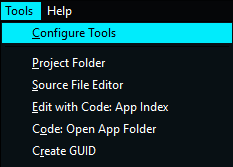
Tools Configuration Menu
Take full control of your shortcuts here: add, edit, or remove tools, and reorder them to match your workflow using the arrow buttons.
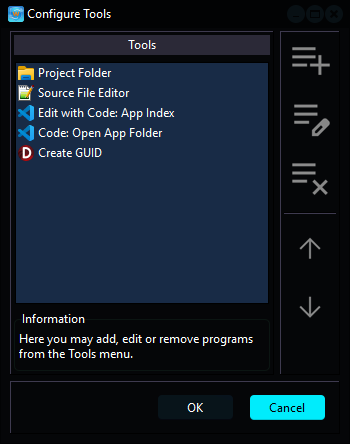
Tool Properties
Manage your shortcuts here: easily configure new tool properties or edit your existing ones to keep your workspace organized.
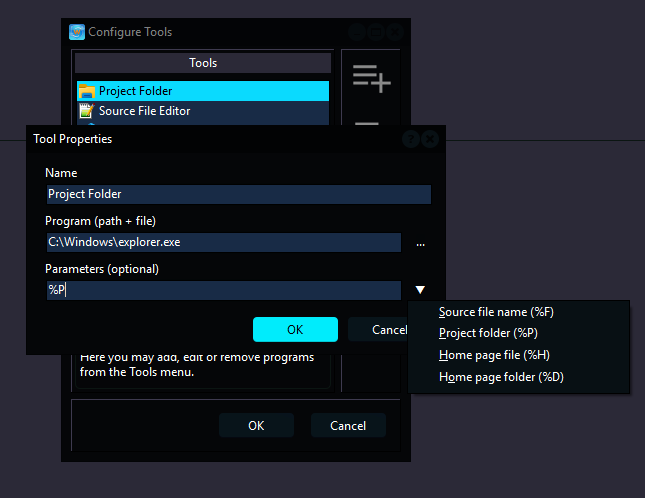
To customize a shortcut in your Tools menu, use these settings in the Tool Properties window:
- Name: Give your shortcut a clear title. This is the text that will appear directly in the Tools menu.
- Program (path + file): Specify the exact location of the software you want to run. You can click the ellipsis (...) button to browse your files and select the .exe.
- Parameters (optional): Enter special codes to tell the program exactly what to open when it starts. For example:
° %F: Opens the current source file.
° %P: Opens the active project folder.
° %H: Opens the home page file.
° %D: Opens the home page folder.
Clicking the down arrow next to this field lets you quickly select these variables from a list.