WebExeBuilder Settings
The Settings panel controls how the Builder application itself behaves — not your individual projects. These are global preferences that apply across all projects.
To open Settings, go to Settings in the main menu, or click the Settings icon on the toolbar. The Settings panel is a dock panel, so you can drag it, dock it, or auto-hide it like any other panel.
Settings are organized into two pages, selectable from the tree view on the left: General and Personalization.
General
At Start
Controls what happens when you launch the Builder:
- Open new blank application — starts with an empty workspace, ready for a new project (default)
- Open last edited application — automatically reopens the project you were working on when you last closed the Builder
- Display file open dialog — shows a file open dialog so you can pick a project to open
This setting is saved automatically when you change it.
After Start
- Check for program updates — when enabled, the Builder checks for new versions on startup and notifies you if an update is available. This option is only available if the Builder is registered (licensed). Unregistered copies have this disabled.
After Compile
Controls what happens automatically after a successful compilation:
- Open folder — opens the output folder in Windows Explorer so you can see the compiled .exe files
- Run executable — launches the compiled app immediately for testing
Both can be enabled at the same time. If both are checked, the folder opens and the app runs after every compile.
File Association
At the bottom of the General page:
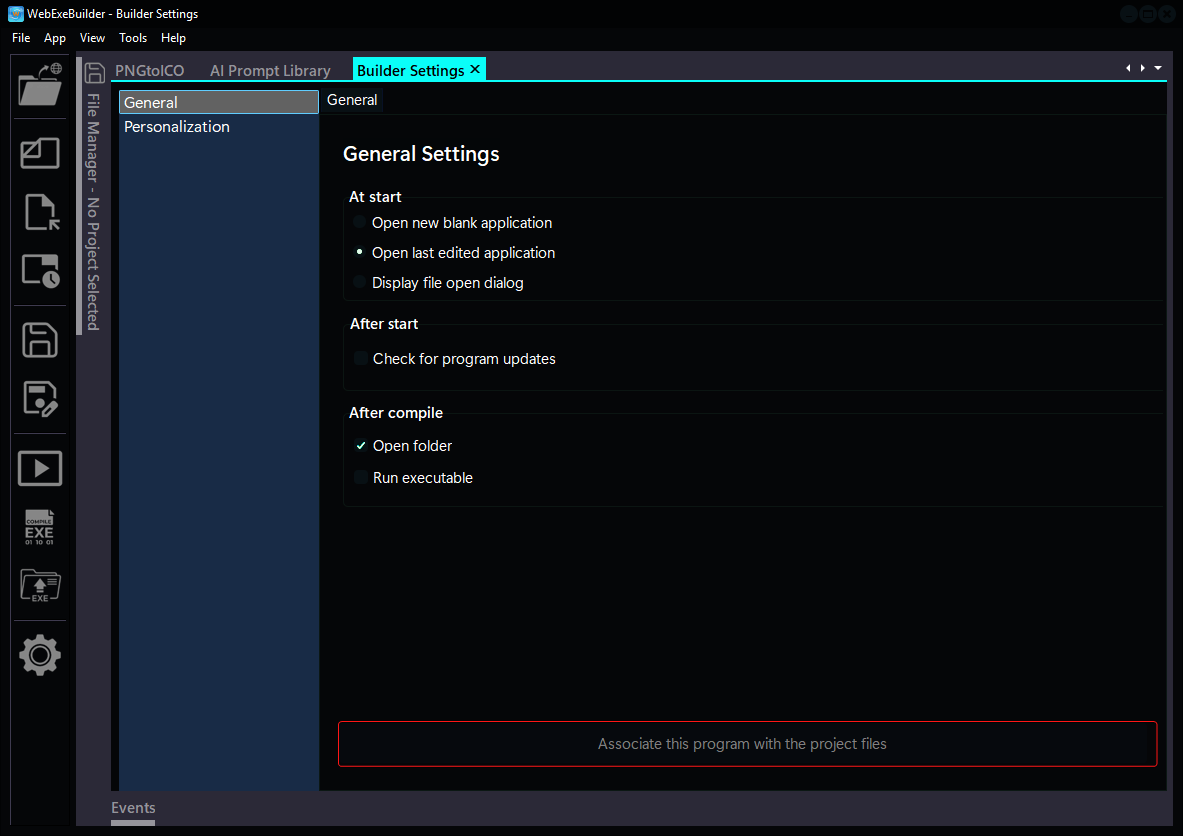
- Associate this program with the webexebuilder project files — registers the
.webfile extension with Windows so that double-clicking a.webproject file opens it directly in the Builder. The button is disabled (grayed out) if the association is already in place. If you ever change the location of the WebExeBuilder application you should register again.
Personalization
Style
Choose a visual theme for the Builder's window chrome, controls, and UI elements. The dropdown lists all available VCL styles. Changing the style applies immediately — no restart needed.
The Builder ships with a large collection of styles including light themes (Windows 11 Modern, Light, Sky), dark themes (Windows 11 Modern Dark, Obsidian, Carbon, MetropolisUI Dark), and many others. Pick whatever suits your preference.
Language
Choose the display language for the Builder's UI. Current available languages:
- English
- Spanish
- Portuguese
- Chinese
- Russian
- German
Changing the language applies immediately to all menus, labels, buttons, and dialogs across the entire Builder — including any open project forms. No restart needed. If you want to create a new language file, I suggest using AI to translate the english file to your new language and save your file to the language folder then load WebExeBuilder.
Layout
Manage the Builder's dock panel layout (the arrangement of panels like App Options, File Manager, Events, Settings, etc.):
- Select layout — dropdown of saved layouts. Selecting one immediately rearranges all panels to match that layout.
- Save — saves the current panel arrangement as a named layout. Enter a name in the dialog that appears. You can create multiple layouts for different workflows (e.g., "Coding", "Compact", "Wide Screen").
Layouts are saved as XML files and persist between sessions. The Builder uses a custom Docking system, so panels can be docked, floated, tabbed, auto-hidden, or split in any combination — and all of that gets captured when you save a layout.
Where Settings Are Stored
Builder settings are saved automatically as you change them. They persist between sessions in the Windows Registry under the Builder's application key. Layout files are stored as XML in the Builder's layouts directory.
Next Steps
- Getting Started — create your first project
- File Manager — manage embedded files
- Requirements — system requirements for the Builder and compiled apps